
How to Setup IPTV on PC or Mac: Easy Guide for Windows and macOS
Learning how to setup IPTV on PC or Mac takes only a few minutes. Choose one of four trusted players, install it from the official store and add your AU-IPTV login. No technical experience needed.
5-Minute Setup
Install one player and add your login.
Official Stores Only
Download from the Microsoft Store or Mac App Store.
Windows and Mac
One subscription, every computer you own.
We Help You Set It Up
24/7 support on WhatsApp.
Setup IPTV on PC or Mac: Stream Live TV on Your Computer
You can watch IPTV on any Windows PC or Mac. There is no box to buy and no hardware to connect. Install a player, add your login and your live channels, sport, movies and series load on your screen.
Apps are downloaded from the Microsoft Store or the Mac App Store, so you know they are safe and up to date. With a stable NBN connection, IPTV looks sharp in HD and 4K. AU-IPTV delivers 50,000+ live channels and 180,000+ movies and series to your computer.
What You Need to Setup IPTV on PC or Mac
Have these three things ready. It saves time and avoids the most common setup mistakes.
Your Login Details
An M3U link or an Xtream Codes login. Request a free trial or choose a plan to get yours.
A Stable Connection
At least 20 Mbps for HD and 50 Mbps or more for 4K. A wired Ethernet cable is the most reliable choice.
A Windows PC or Mac
Any Windows 10 or 11 computer, or a Mac running a recent version of macOS, with access to its app store.
The 4 Best IPTV Players for PC and Mac
Free and trial options for every budget, all compatible with your AU-IPTV subscription. Pick the one that suits you best.
| Player | Windows | Mac | Free trial | Best for |
|---|---|---|---|---|
| MyIPTV Player | Yes | No | Free app | Windows users |
| IBO Player Pro | Yes | Yes | 7 days | Premium features |
| Hotplayer | Yes | Yes | 30 days | Simple MAC setup |
| UHF | MacOS | Yes | Free tier | Power users |
Trial lengths and free tiers are set by each app developer and can change.
Safety reminder: Always download players from the Microsoft Store, the Mac App Store or the official developer website. The apps in this guide are the property of their developers. AU-IPTV is not affiliated with them and recommends them because they work well with our service.

How to Set Up MyIPTV Player on Windows
MyIPTV Player is a free, lightweight option for Windows. It supports Xtream Codes and M3U playlists, so you can choose whichever login you were given.
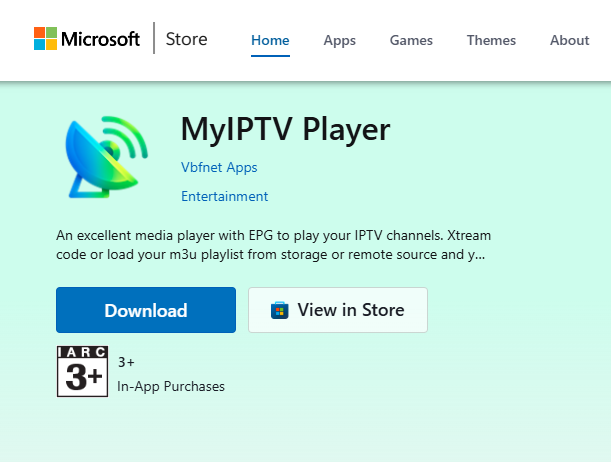
Download and install
- Open the Microsoft Store and search for MyIPTV Player.
- Click Download, then Launch once it is installed.
Add your playlist
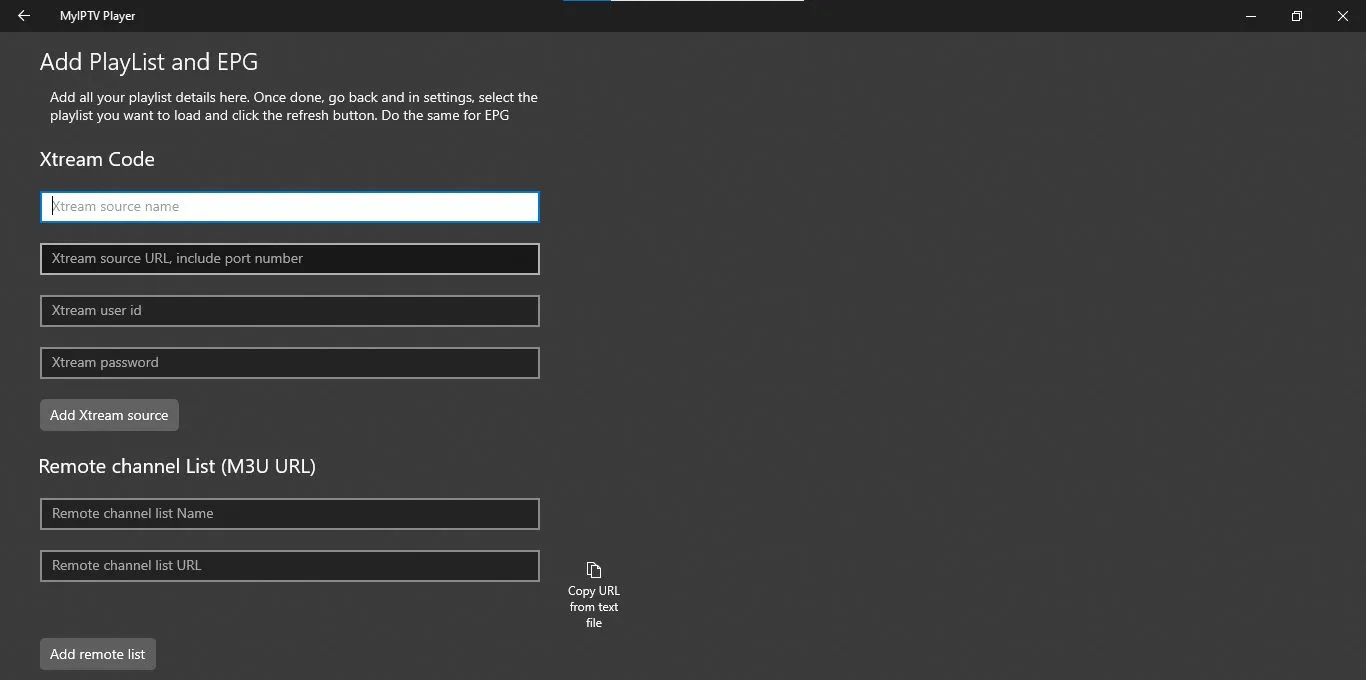
- Open the app and go to Settings.
- Select Add New Playlist, then Xtream Codes.
- Enter your login details, give the playlist a name and click Add Xtream Source.
Load your channels
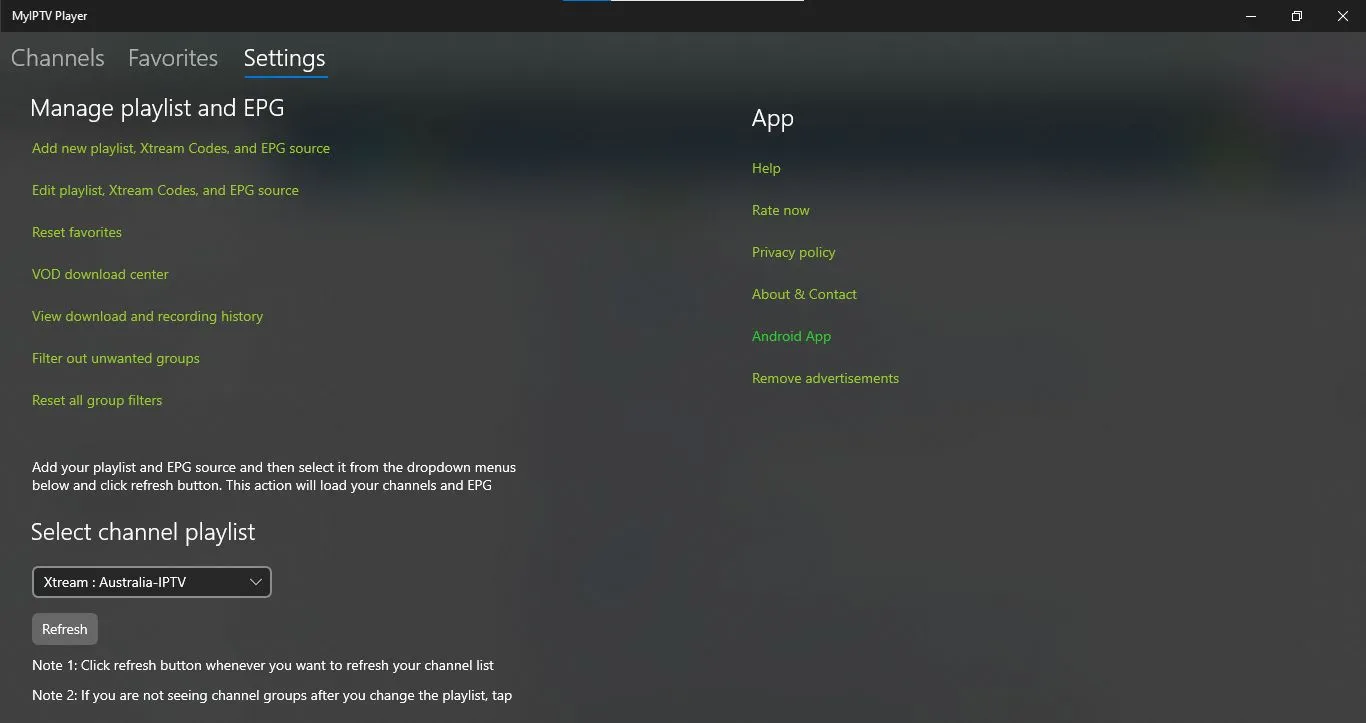
- Go back to the home page and click Select Channel Playlist.
- Choose the playlist you added and press Refresh.
Start streaming
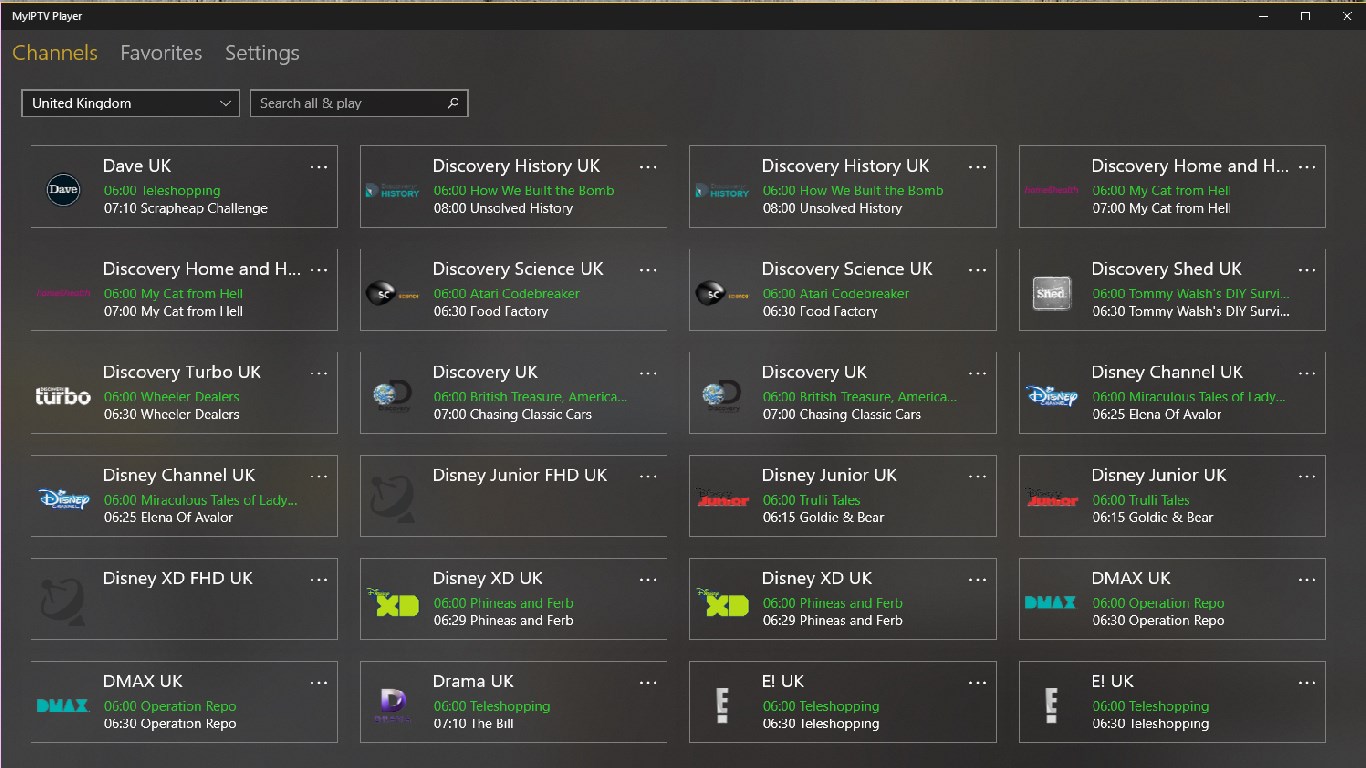
- Click Channels at the top left to browse, or Program Guide for the schedule.
- Double-click any channel to start watching.
Prefer an M3U link? Press Add Remote List in the Remote Channel List section and paste it. The link must start with http://.

How to Set Up IBO Player Pro on PC and Mac
IBO Player Pro is a premium player with a polished interface and smooth performance. It uses your device's MAC address and Device Key, so setup happens on the web portal.
Install the app
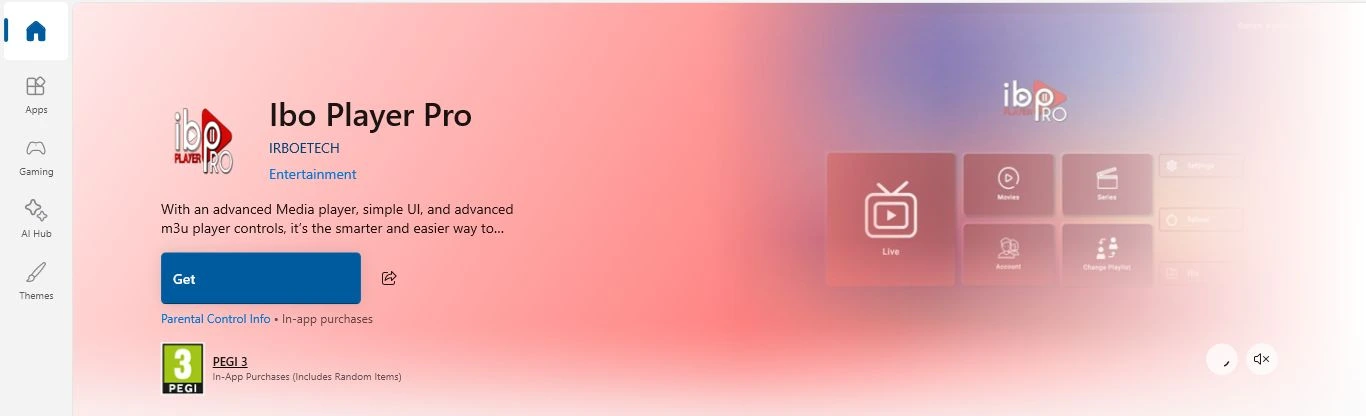
- Open the Microsoft Store or Mac App Store and search for IBO Player Pro.
- Click Get, then Launch.
Note your device details
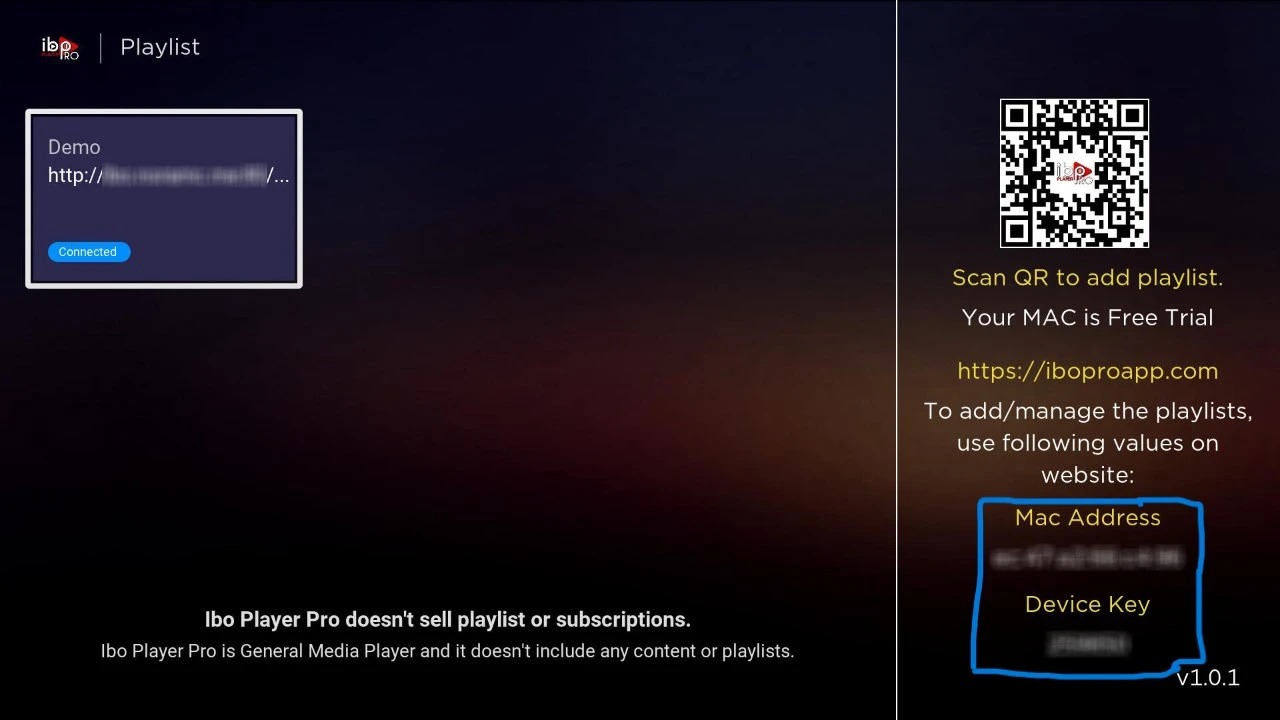
- Open the app and copy the MAC address and Device Key exactly as shown.
Log in to the portal
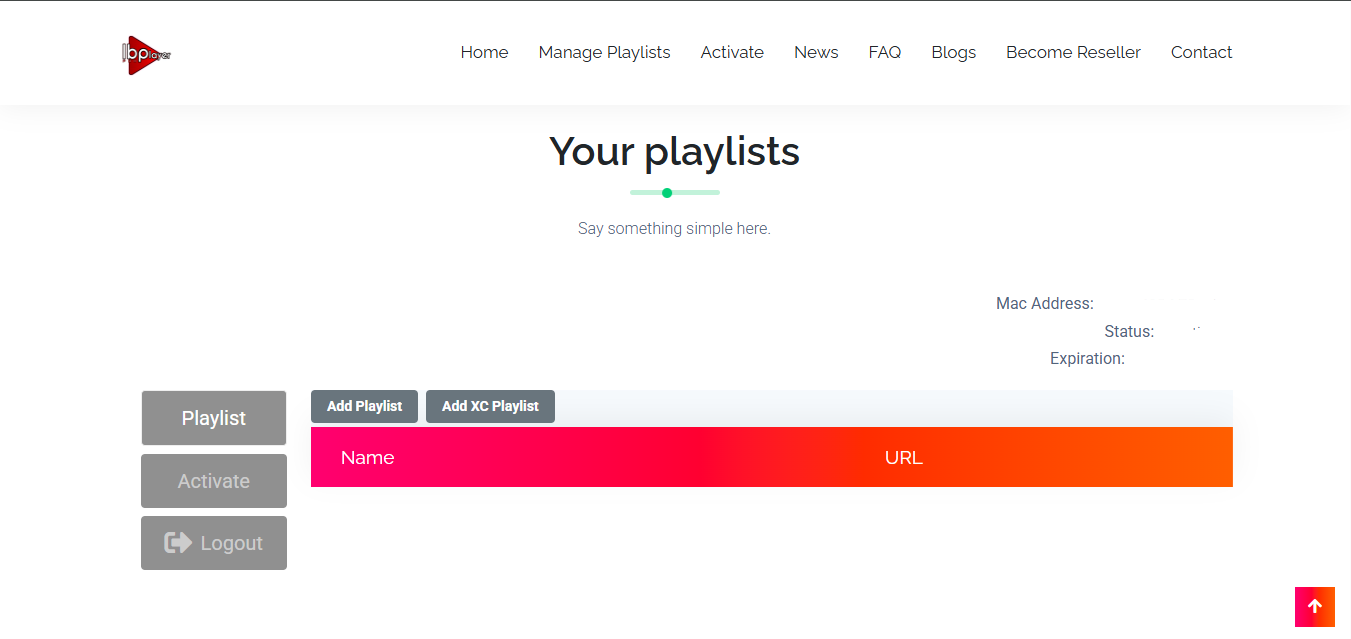
- On your computer or phone, go to iboplayer.pro/manage-playlists.
- Enter your MAC address and Device Key, then click Add Playlist.
- Paste the M3U URL we sent you. It must start with http://.
Restart and stream
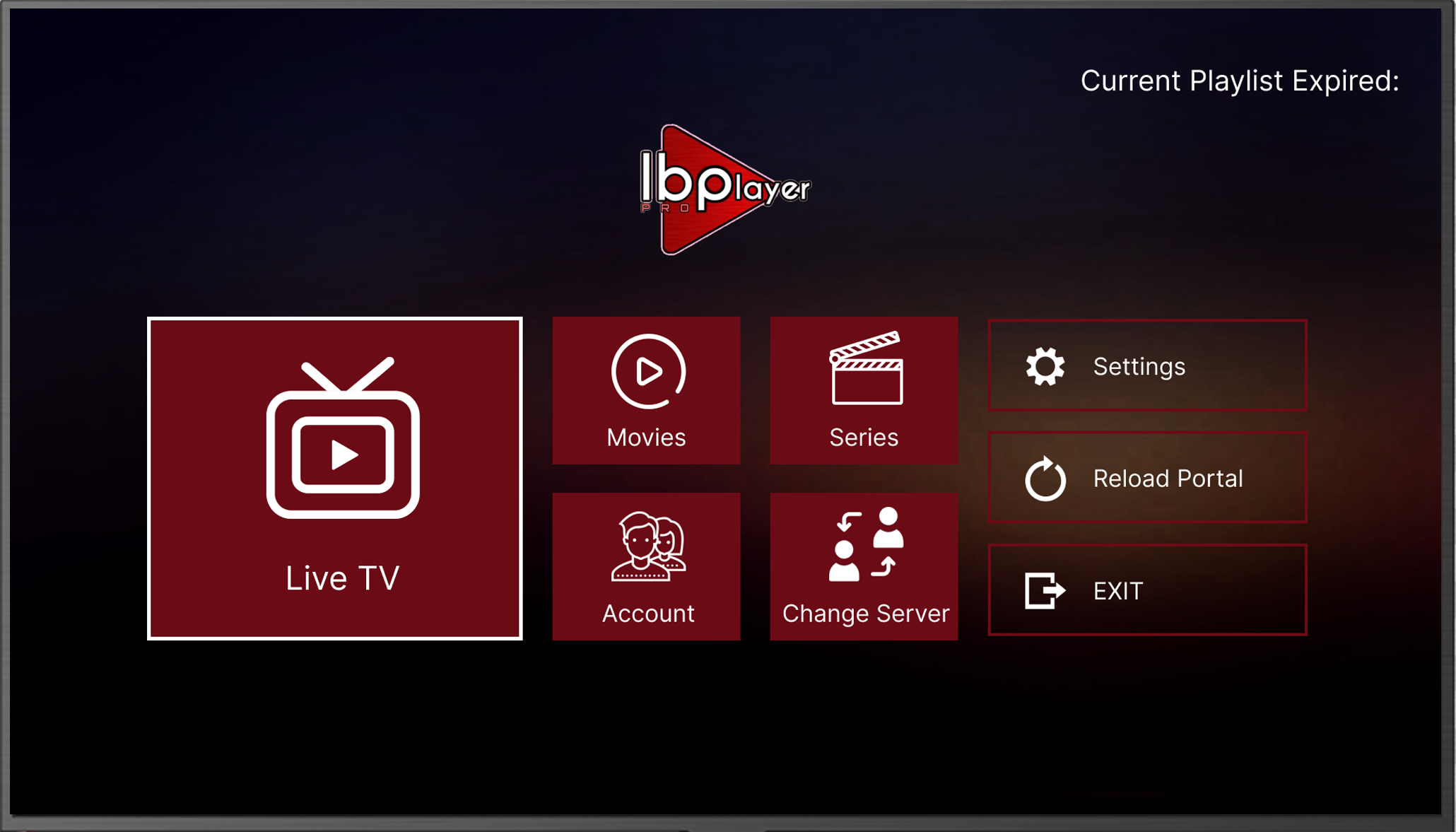
- Restart IBO Player Pro on your PC or Mac.
- Your channels and movies appear automatically.
- After the trial, activate the app through the developer's pricing page.

How to Set Up Hotplayer on PC and Mac
Hotplayer (may also appear as Hot IPTV) has the most generous trial of the premium players. Its online upload page means setup takes under three minutes.
Download the app
- Open the Microsoft Store or Mac App Store and search for Hotplayer.
- Click Get, then Launch.

Note your MAC address
- On the main screen of the app, note the MAC address. It is unique to your device.
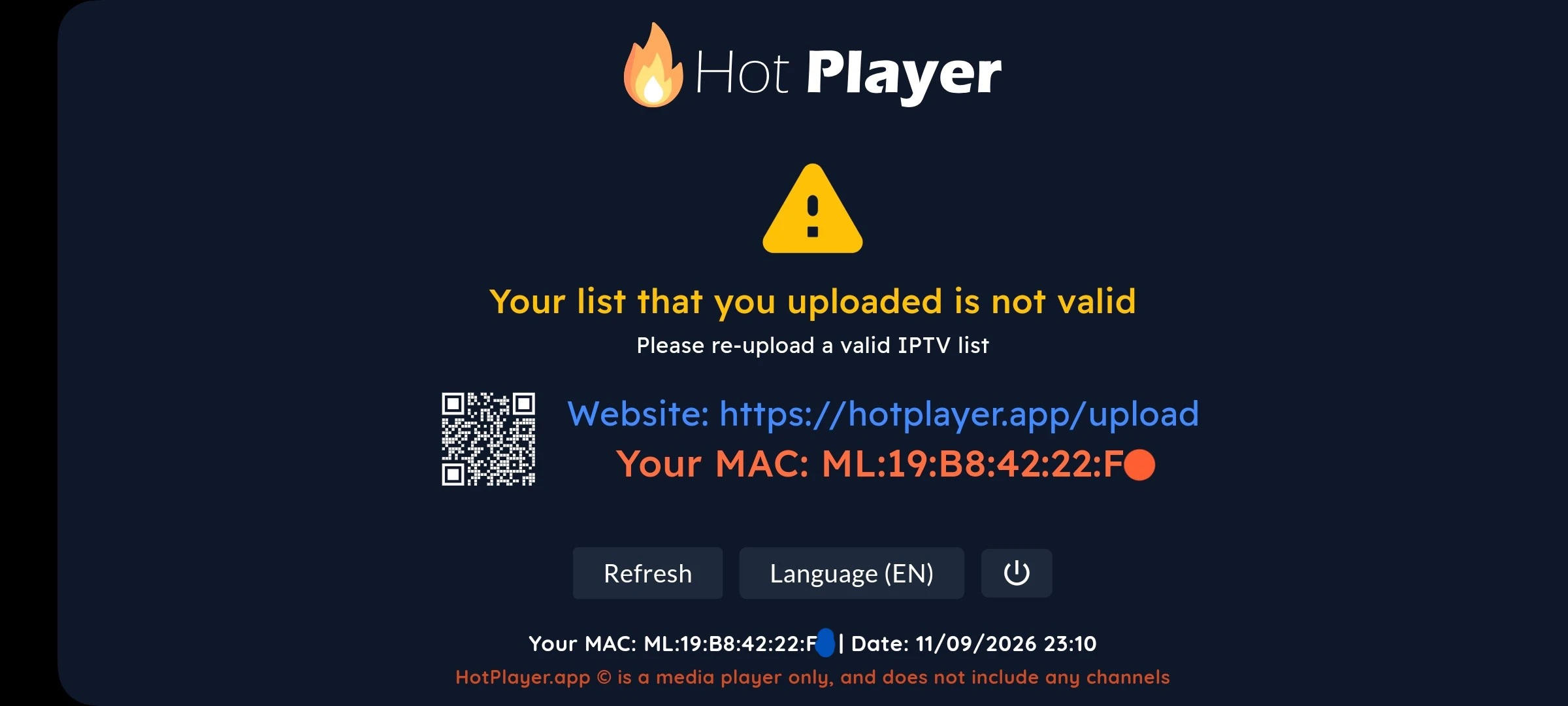
Upload your playlist
- On your phone or computer, go to hotplayer.app/upload.
- Enter your MAC address and click Next.
- Paste your M3U URL, name the playlist (for example AU-IPTV) and check it starts with http://.
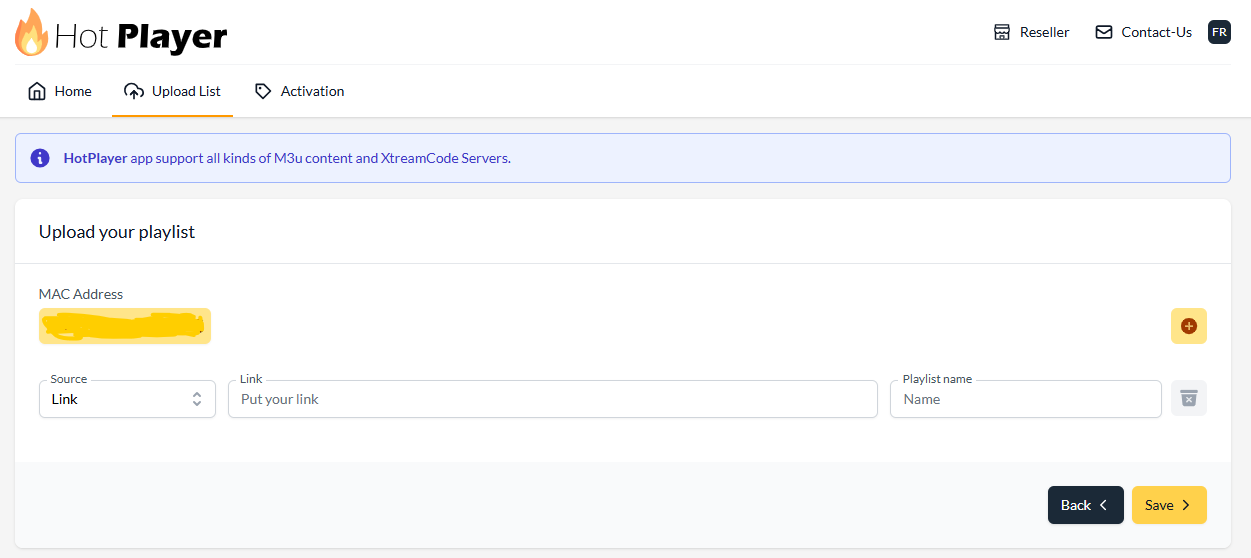
Save and restart
- Click Save, then restart Hotplayer on your PC or Mac.
- Your channels and movies appear automatically.
- After the trial, activate at hotplayer.app/activation.


How to Set Up UHF on Mac
UHF is a power-user player with Picture-in-Picture, a full TV guide and Smart Reconnect for brief stream drops. It suits Mac users who want more control over their streams.
Download the app
- Open the Mac App Store and search for UHF.
- Click Get, then open the app.
Add your playlist
- Open UHF and add a new playlist.
- Choose M3U URL or Xtream Codes, depending on the details we sent you.
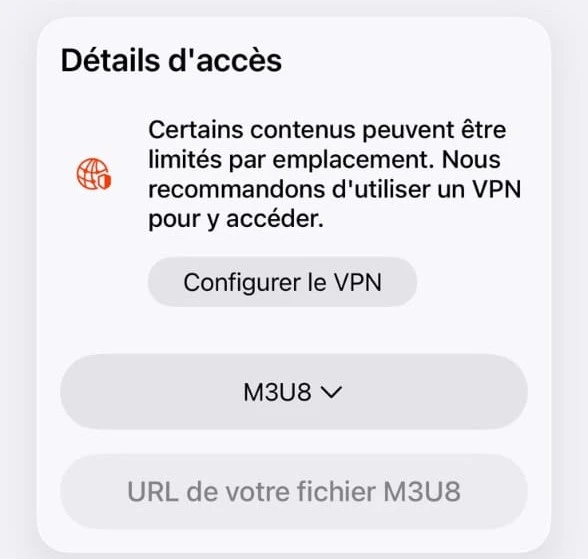
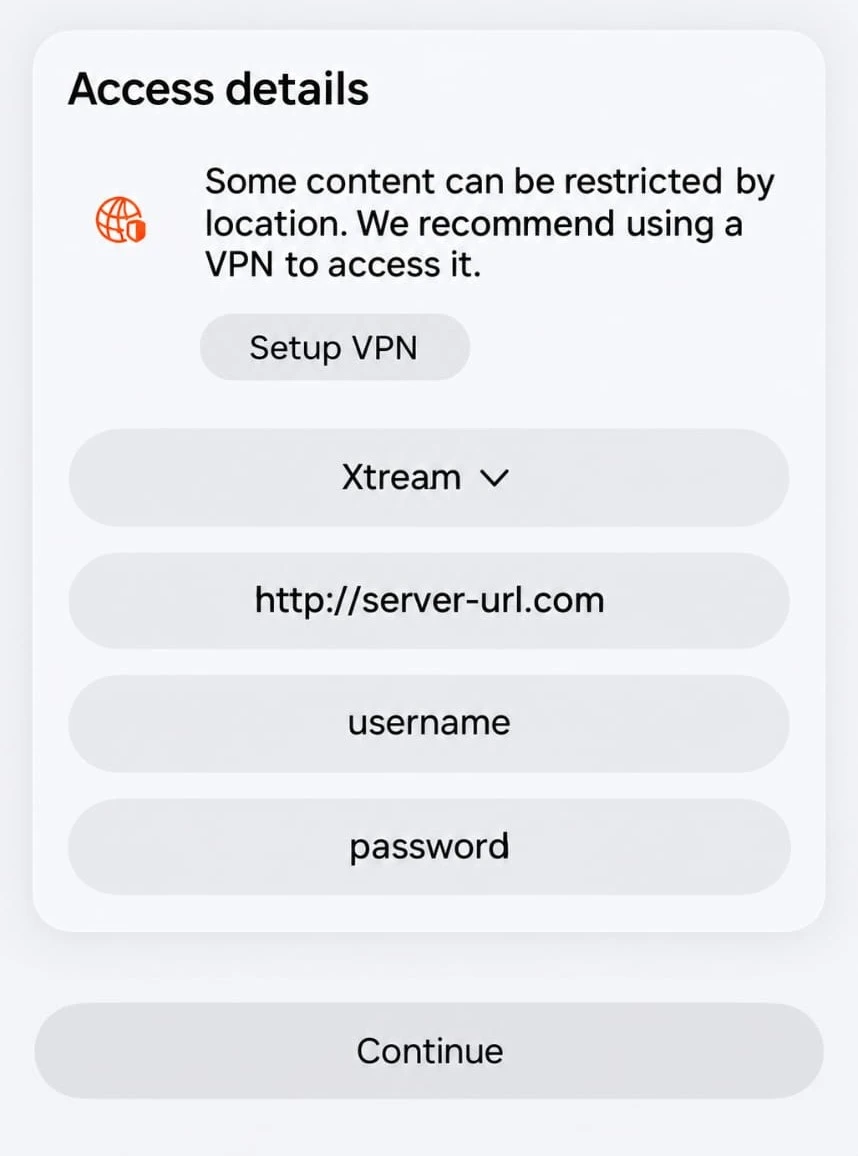
Enter your login details
- Paste your M3U link, or enter your Server URL, Username and Password.
- Check that the link starts with http://, not https://.
Reload and watch
- Save the playlist and reload it if channels do not appear.
- Turn on Smart Reconnect in the playback settings to recover from brief interruptions.

Quick Comparison: Which Player Is Best on PC and Mac?
| Feature | MyIPTV Player | IBO Player Pro | Hotplayer | UHF |
|---|---|---|---|---|
| Price | Free | 7-day trial | 30-day trial | Free tier |
| Windows | ✓ | ✓ | ✓ | — |
| Mac | — | ✓ | ✓ | ✓ |
| Setup method | Xtream Codes or M3U | MAC address portal | MAC address upload | In-app |
| EPG / TV guide | ✓ | ✓ | ✓ | ✓ |
| Best for | Windows users | Premium features | Quick setup | Power users |
Our advice: Mac users should start with Hotplayer for the quickest setup, or choose UHF for power-user features. Windows users can choose MyIPTV Player for a free option.
Your Computer Is Ready for IPTV
No box, no hardware and no extra cables. Setup IPTV on PC or Mac in minutes and enjoy HD and 4K on your Windows PC or Mac.
Troubleshoot Common IPTV Issues on PC and Mac
Quick fixes for the most frequent problems on Windows and macOS. Most take less than a minute.
Buffering or freezing
- Run a speed test. You need at least 20 Mbps for HD and 50 Mbps or more for 4K.
- Switch from Wi-Fi to a wired Ethernet cable.
- Close downloads, video calls and game updates while you watch.
- Lower the stream quality in the player settings, then restart your router if it persists.
Playlist won't load
- Check the Username, Password and Server URL exactly as sent to you. Remove any extra spaces.
- Make sure the link starts with http://, not https://.
- Copy and paste your details from the activation email instead of typing them.
- Delete the playlist and add it again from scratch.
App won't install on Mac
- Download the player from the Mac App Store or the developer's official website only.
- If macOS blocks the app, open System Settings, go to Privacy & Security and click Open Anyway.
- Update macOS to the latest version your Mac supports.
- Restart your Mac and try the install again.
Channels load but video will not play
- Try a different channel to check whether one stream is the problem.
- Update your player to the latest version.
- Check that your antivirus or firewall is not blocking the player.
- Try a different player to rule out an app issue.
IPTV on PC and Mac: Frequently Asked Questions
Start Watching IPTV on Your Computer Today
Setup IPTV on PC or Mac takes about five minutes: install your player from the official store, add your login and start watching.
For other devices, see our full IPTV setup guide. For everything about channels, plans and players, read our complete guide to IPTV for Australia.